Your key, your account: how Guidely reads your support, errors and analytics with Claude
Add your own Anthropic API key to a Guidely project and every AI feature uses it: Scout answers, error root causes, replay findings and weekly briefs.
Gurp Parmar6 min read
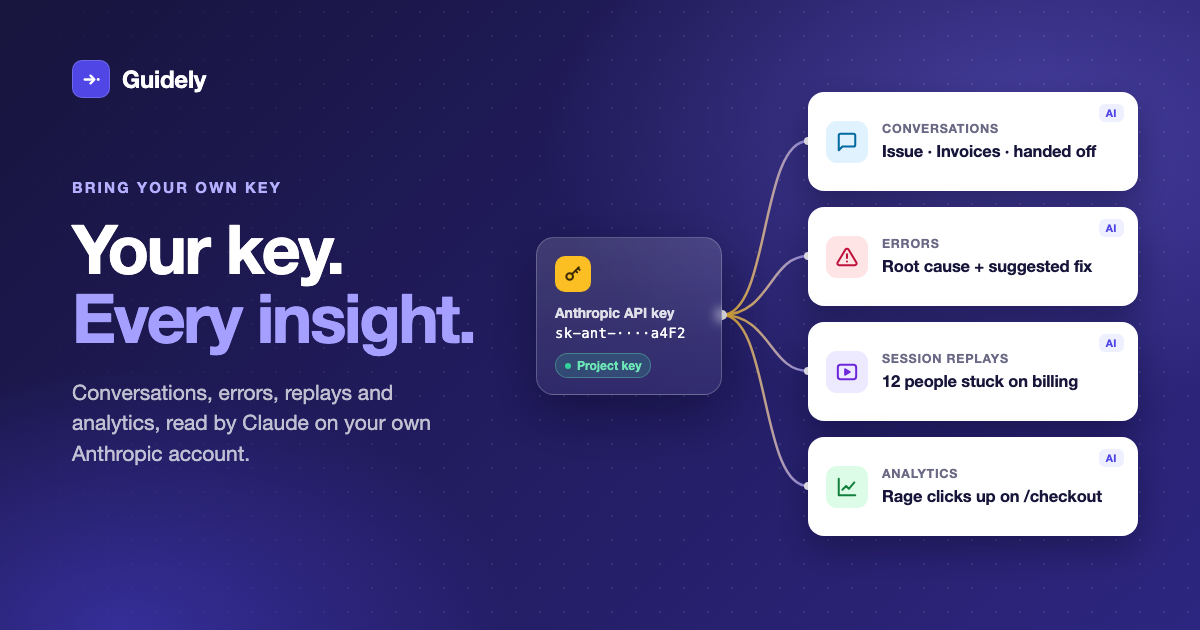
Guidely sees your product from several angles at once. There are the questions people ask Scout, the errors your code throws, the recordings of what people actually did, and the analytics behind all of it. Each one tells you something. The useful part is where they overlap: the page where rage clicks went up, a new error started, and three people asked Scout why the Save button does nothing.
Claude reads all of it for you. Add your own Anthropic API key to a project and every one of those AI features runs on your account.
One key, every AI feature
You add the key once per project, under Settings → Scout → Anthropic API key. That one key then powers every AI feature in the project, not only Scout.
Messages and support
Scout answers in the messenger, using your help articles, FAQs, how-tos and live guides.
Learned answers. When a teammate resolves a conversation, Scout writes down what the teammate said so it can answer the next person who asks.
Conversation reports. Each conversation gets a type (question, issue, feature request, feedback), a support topic, and two short notes: what the person needed and how it ended. These drive Reports → Conversations and the help-by-page view.
Support by client. A short brief on what your busiest clients are asking about and what's being done about it.
Feedback themes. Feature requests, survey comments, NPS replies, complaints and classified conversations are grouped into themes and given a sentiment. You can also ask questions about your feedback in plain English.
Feature-request capture. Conversations that ask for a feature are linked to the matching request, or filed as a new one for you to review. Likely duplicates are flagged.
Agent analytics. Conversations with your own AI agent get a topic, a sentiment, an outcome and a one-line summary.
Errors
AI issue analysis. For any error issue, Claude writes a summary, a root cause and a suggested fix. It works from the newest occurrence: the exception chain, stack frames with the source lines around your code, up to 30 breadcrumbs, tags, the 14-day trend, affected releases, and up to 10 reports from users. When a newer occurrence comes in, the analysis is marked stale and can be regenerated. Your team rates each one.
User feedback triage sorts the reports people send about errors.
Analytics and session replay
Findings from recordings. Each finished recording becomes a text timeline that Claude reads. It notes what the person was trying to do, whether they managed it, and any problem or workflow worth remembering. Findings from different recordings are merged, so you see "12 people got stuck on the billing form" rather than 12 separate notes.
Findings from analytics. Once a day, Claude compares this week with last week: error issues, pages with rage clicks or errors, swings in feature usage, guides people drop out of, and support topics on the rise.
The Scout insights brief. A weekly headline plus a handful of insights. Each one links to the pages, recordings, errors and findings behind it. It refreshes daily while your team is using it.
Draft guides from findings. When Scout is confident about a friction point, it drafts a tip or tour. The draft only points at elements people actually clicked in the recordings, and nothing goes live until a teammate publishes it.
Tagging suggestions for your busiest untagged pages and features.
The same key also covers automatic translation, how-to write-ups and knowledge imports.
Why one key across everything matters
Insights get more useful when they're connected. The page overview in Scout insights is worked out from your data, not written by AI: traffic against last week, rage clicks, errors, how the recordings on that page went, conversations started there, and open problems. Claude then writes the brief on top of that, and every point it makes has to cite a real page, recording, error or finding it was given. So when it says "checkout is getting worse", you can click straight into the recordings and the error behind it.
What happens when you add a key
We check it. Before saving, Guidely makes one cheap, authenticated call to Anthropic. If Anthropic rejects the key, we tell you straight away. If the network is just having a moment, we save it anyway.
We encrypt it. The key is stored with AES-256-GCM. It is never sent back to your browser, never returned by our API, and never written to the audit log. The log records only that a key was set or removed. In the dashboard you'll only ever see the last four characters.
Every AI call goes through one place. Every AI feature asks for its key from the same function. It uses your project's key first, then Guidely's shared key if one is allowed, and otherwise turns AI off. Because there's a single choke point, a new feature can't forget your key or your workspace's policy.
You can take it back. Remove the key and the project goes back to Guidely's shared key. If there's no shared key, Scout stops answering and new questions go straight to your team inbox.
What it costs
Scout answers are free when you use your own key. On Guidely's shared key they're a metered product (the first 100 a month are free). With your own key, the usage goes to your Anthropic account and you pay Guidely nothing for those answers.
Every other AI feature is included either way. Insights, findings, error analysis, classification, tagging and feedback analysis aren't metered. They're rate limited instead (for example, 30 error analyses per workspace per hour), which keeps costs predictable.
You control the spend. Your usage shows up in your own Anthropic Console, with your own limits and invoices.
What we send, and what we don't
Recordings and analytics are sent from your users' browsers with a public key, so we treat them as untrusted, both for privacy and against prompt injection.
Before the model: text is scrubbed of emails, card, phone and account numbers, tokens, API keys, IP addresses and query strings. Paths have their ids folded (
/invoices/:id). We never read input values, request or response bodies, headers, selectors or user traits from recordings.For error analysis: we never send cookies, request headers or bodies, query strings, user ids, emails or IP addresses. Frame variables and tags with secret-looking names (password, token, key, auth, cookie, session, card) are redacted. Event text is marked as data the model must not follow.
After the model: output is scrubbed again and stripped of links. The model can only point at pages, recordings and errors it was actually given.
Before end users see anything: findings only reach Scout's answers after a teammate approves them (this is on by default). The weekly brief and trends are for your team only.
For Scout replies: Scout gets the conversation, your published content, the person's first name (never their email) and the path of the page they're on, with ids folded.
HIPAA mode: your key, your agreement
If your workspace runs in HIPAA mode, Guidely won't use its shared AI key. Your project's own Anthropic key keeps working, because those requests go to Anthropic under your own agreement with them. Settings → HIPAA shows every project as AI on or AI off, and the API key card explains why.
Get started
Create an API key in the Anthropic Console.
In Guidely, open Settings → Scout and paste it into Anthropic API key.
Turn on the features you want: Scout, learning from recordings, AI issue analysis, feedback triage.
The badge on the card switches to Project key, and that's it.